How it works
From your first quotation to your next business milestone.
Discover how Facturador helps you manage invoices, customers, products, taxes and more in one simple, organized workflow.
Create and send invoices
In minutes
Organized customers
Always at hand
Control your business
In one place
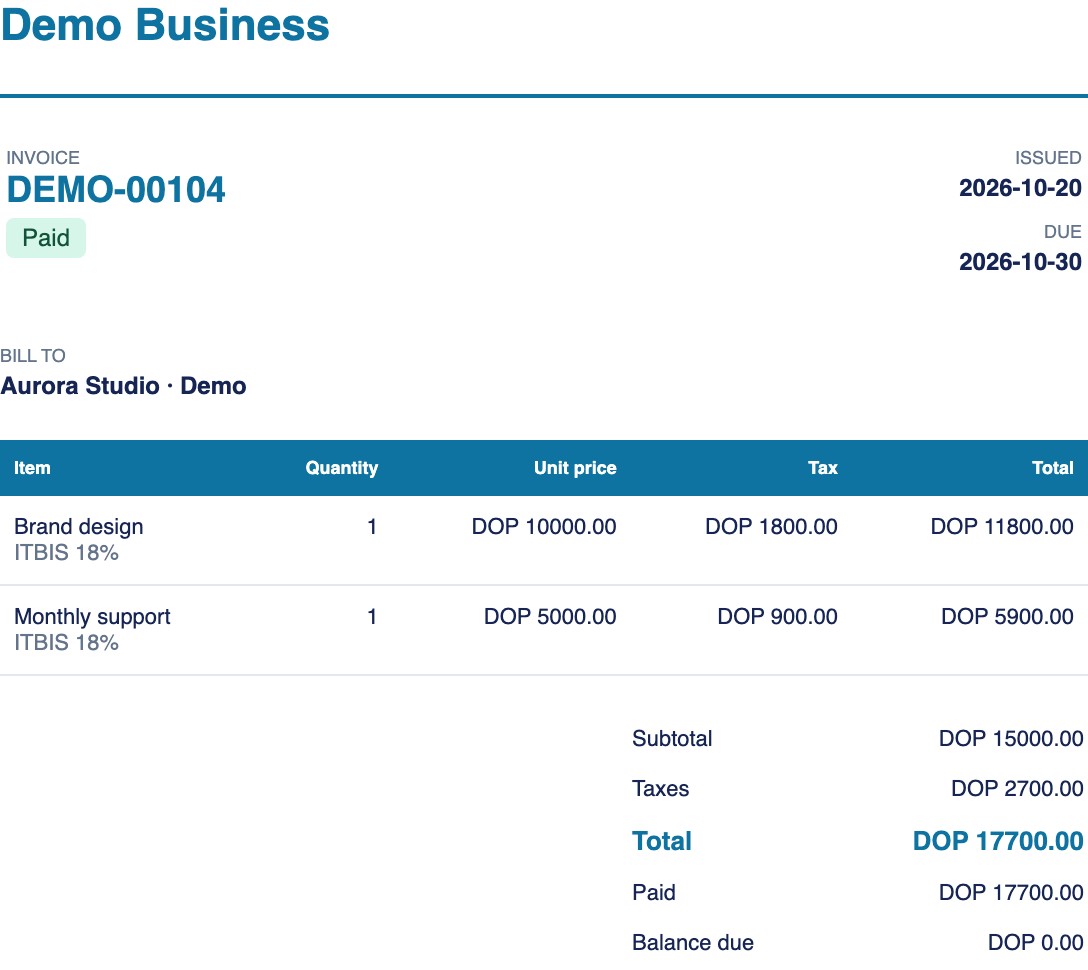
DEMO-00104
status.paid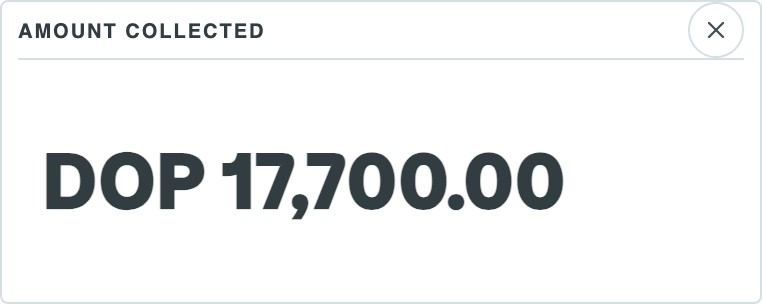
Invoice preview
- Quotation
- Invoice
- Payment
Discover Facturador
Explore Facturador your way
Discover how Facturador fits the way you work, whether you manage your own business or multiple companies.
Your entire business, in one place
Organize your operations, manage your businesses and work with your team.
Organize your work
Manage your company and switch between businesses you can access. Each business has its own subscription.
Grow at your pace
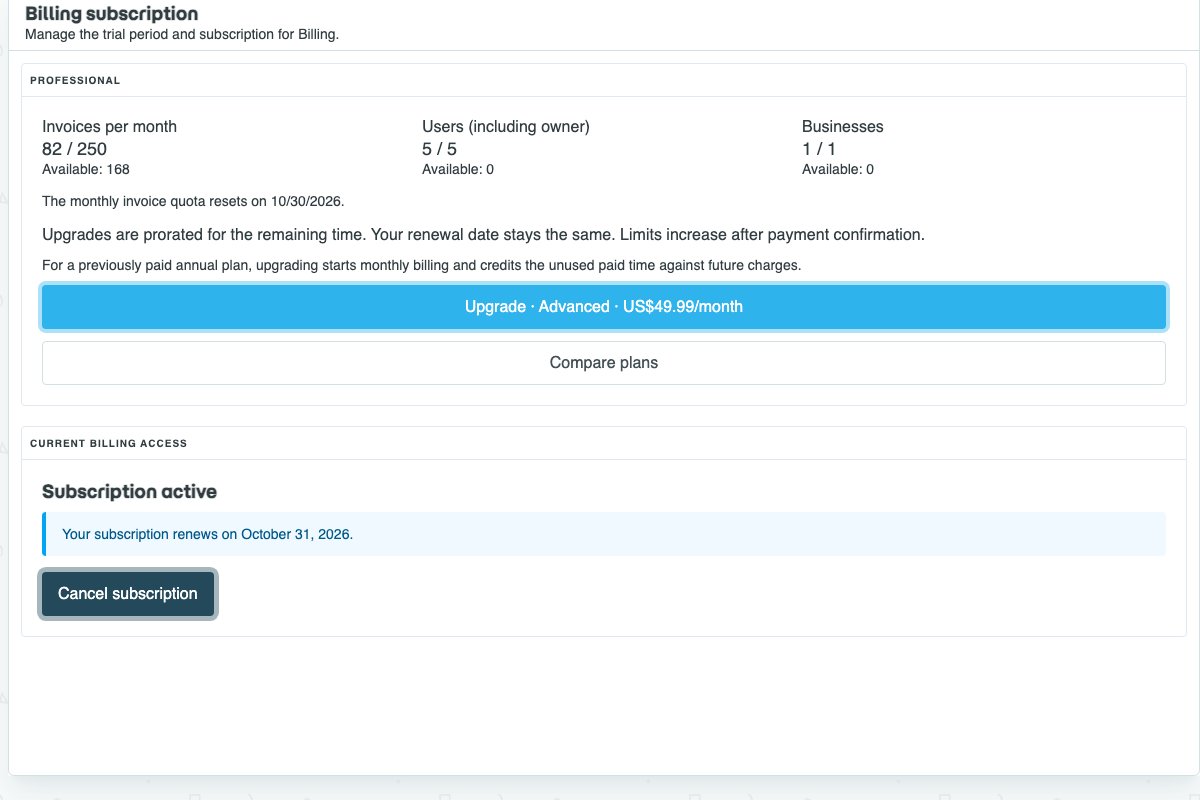
Your plan sets monthly invoice and user limits, including the owner. Check your available capacity and upgrade when you need more.
Work as a team
Invite collaborators with permissions for each business. The owner retains access to every feature.
The same tools for both account types: sales, purchases, inventory, reports, the client portal and electronic invoicing. DGII requires configuration, certification and authorized numbering for each business.
Search features
Search words in titles, explanations and instructions for the selected account type.
From your first account to your next plan
Get started, activate your membership and grow step by step
Choose a walkthrough and select its steps to see the screens. The Businesses / Accountants selector above adapts the examples to your account type.
Choose Business or Accountant
Open Register and choose Business to manage your own business or Accountant to manage multiple business profiles. Arriving from a Pricing plan preselects its account type and plan. This demo follows direct registration without a preselected plan.
Businesses: each business has its own subscription. The owner counts toward the user limit.
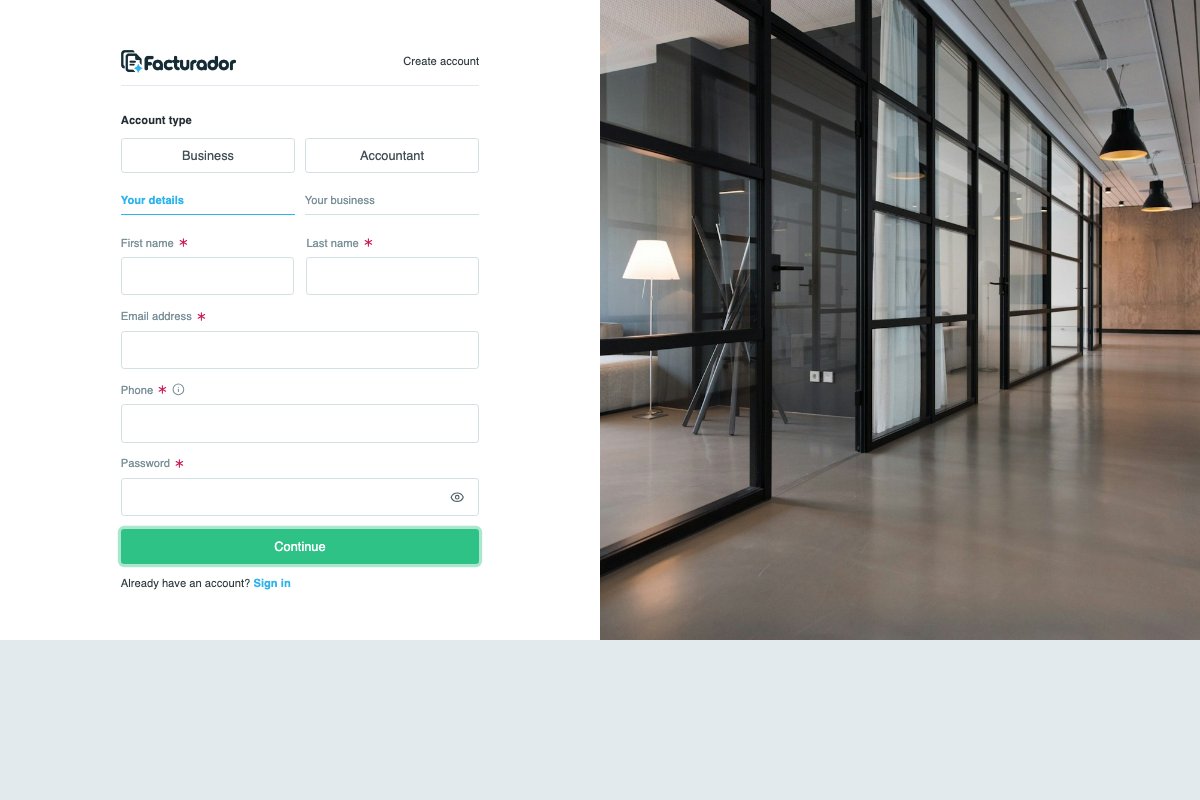
Demo with fictional data. These screenshots do not create accounts, purchase plans or process payments. External checkout is explained; no simulated payment-provider screen is shown.
01 · Electronic invoicing · DGII
From invoice to DGII status, all in one place.
Explore e-CF tracking, choose when to submit and manage your authorized numbering.
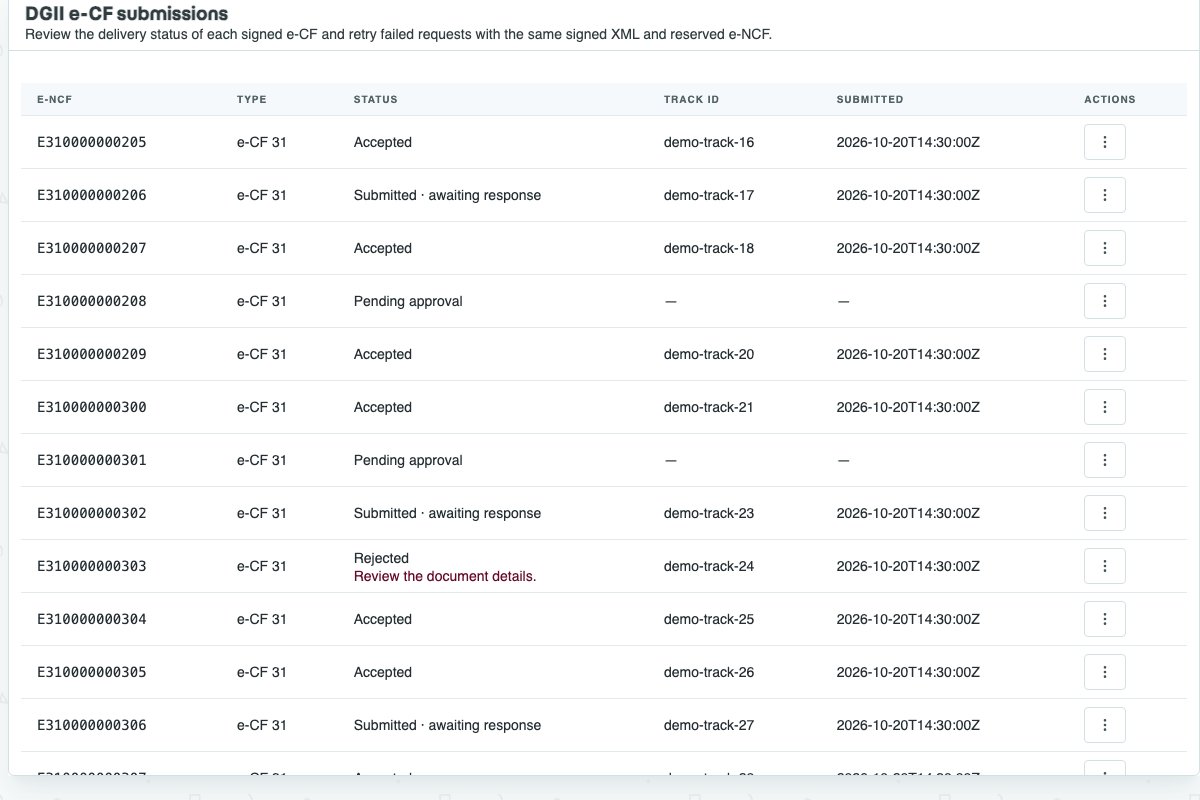
Electronic invoicing connected to DGII
Manage digital signatures, e-NCF sequences and submissions in a dedicated DGII area. Choose review before submission or automatic submission according to your business settings.
How it works
Issuance requires active setup, completed certification and available authorized numbering for the document type. Review statuses and rejection messages: submitted does not mean accepted. Pending or rejected documents are not shared with customers; acceptance enables delivery.
02 · Dashboard
A financial overview that fits your work
Choose the metrics you need, review the period that matters and set up your business step by step. Explore your dashboard through these interactive screenshots.
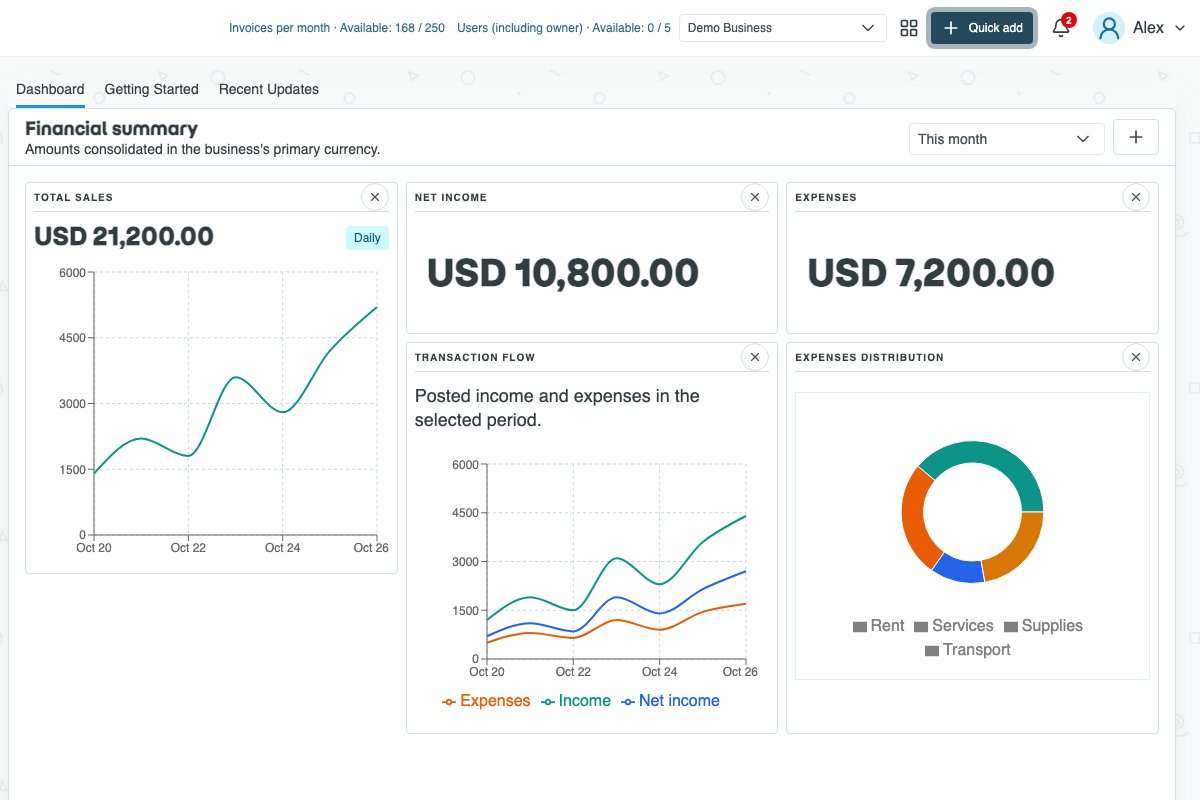
Make room for what matters
Customize your financial overview with metrics and charts for your business activity. The + button opens a side gallery with small previews of the available modules.
How it works
Drag a module from the gallery onto the report or click to add it. You can move it, resize it or remove it with X. When you change the layout, Save appears next to + so you can keep your design.
03 · Your workspace
Everything at hand, right in the header
Switch businesses, create what you need and keep your account up to date. Explore the header menus and see where each option takes you.
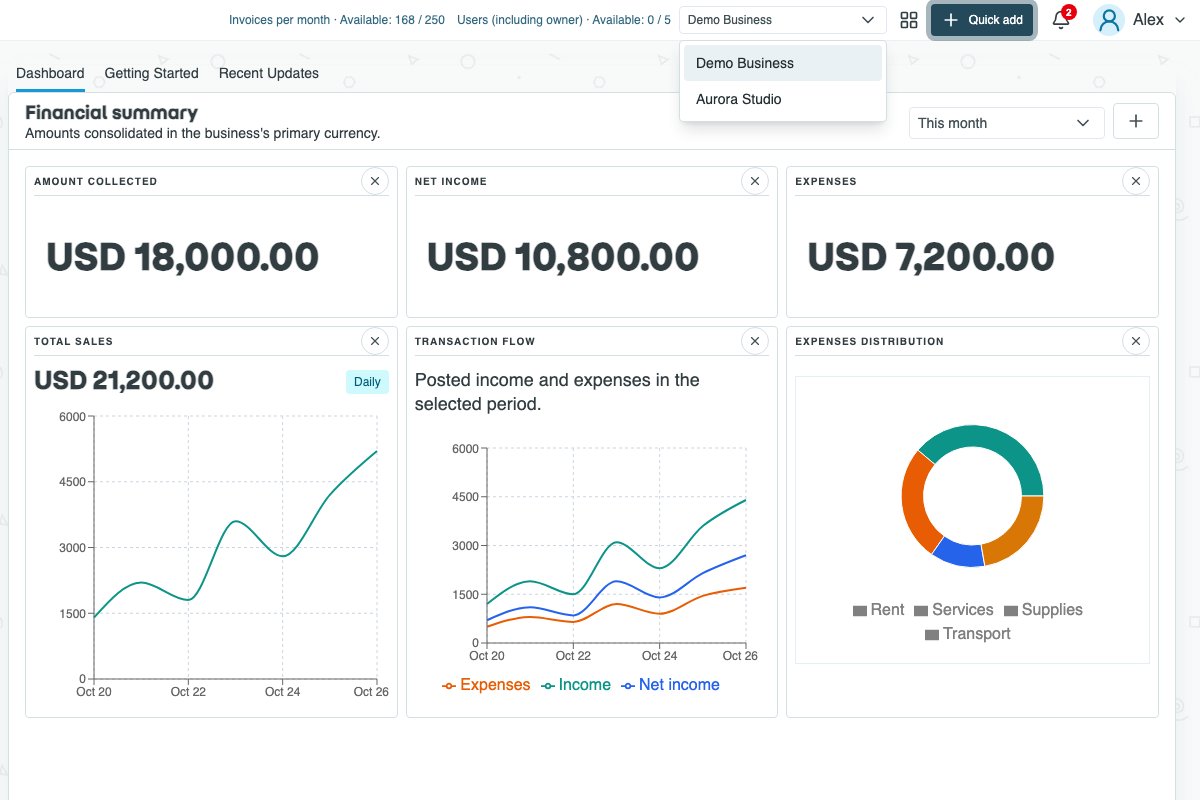
Several businesses, one sign-in
Move between businesses using the selector in the header. The active business name stays visible, so you know where you are working before creating an invoice or looking up its records.
How it works
The selector lists the businesses you can access. Each business keeps its own data and permissions: switching changes the workspace you are working in. Try the point on Aurora Studio to see the selection change.
04 · Sell and invoice
From a clear proposal to a well-documented sale.
Prepare your sales documents and keep the context of each transaction. Choose the workflow that fits, from an ordinary invoice to an electronic fiscal document.
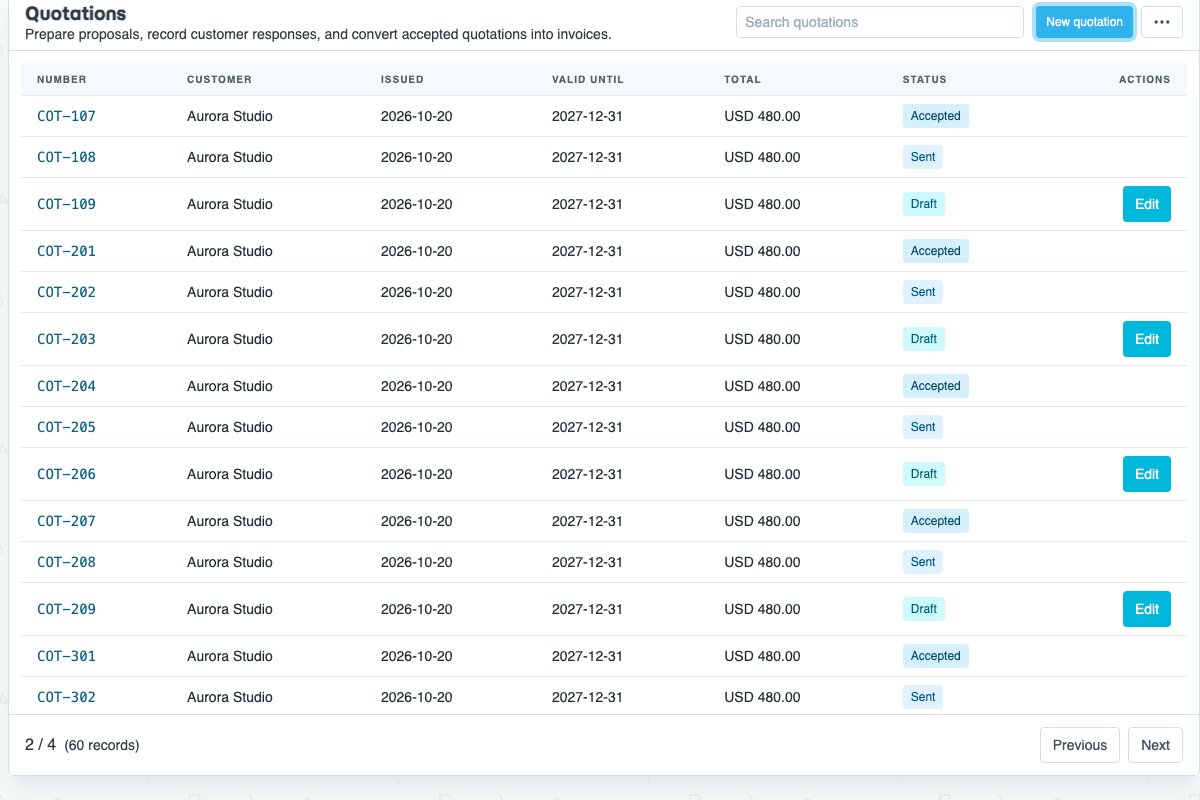
Quotes that move the conversation forward
Present products or services, quantities and prices in an organized proposal. Your customer can review the purchase scope while you keep a clear record of what you offered.
How it works
When the proposal moves forward, convert it into an invoice to continue the sale without starting over. Reduce retyping and keep the connection between your quote and your bill.
05 · Serve and collect
Make doing business with you easier.
Keep customer information close, make documents easier to access and offer online payments once you connect a supported provider.
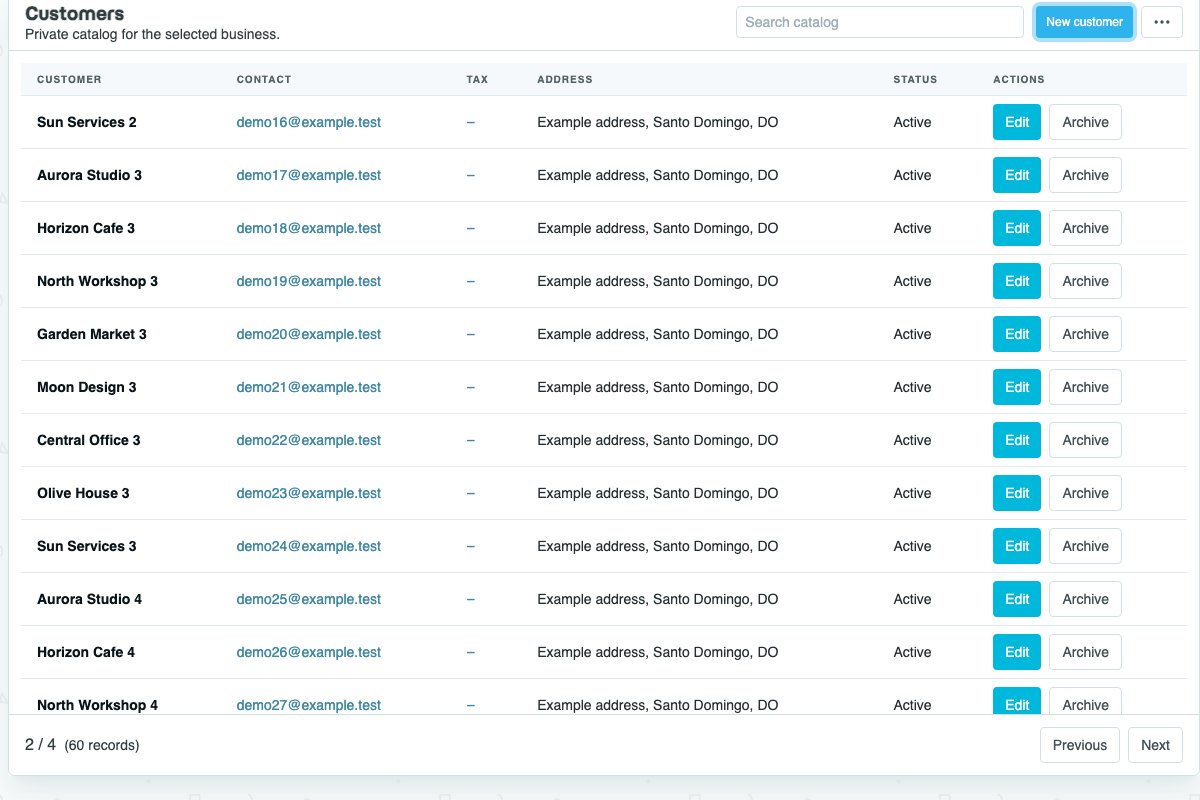
Customer records that support better service
Store customer contact details, tax identification and addresses. Country, city, state and postal code help keep more complete information for documents and communications.
How it works
Location suggestions can simplify entry when available; addresses can also be entered manually. Reuse customer details on invoices rather than asking for the same information on every sale.
06 · Buy and organize
What comes in, what goes out and what you owe.
Connect your catalog to everyday operations. Organize purchases and expenses to understand what your business needs and which commitments are coming up.
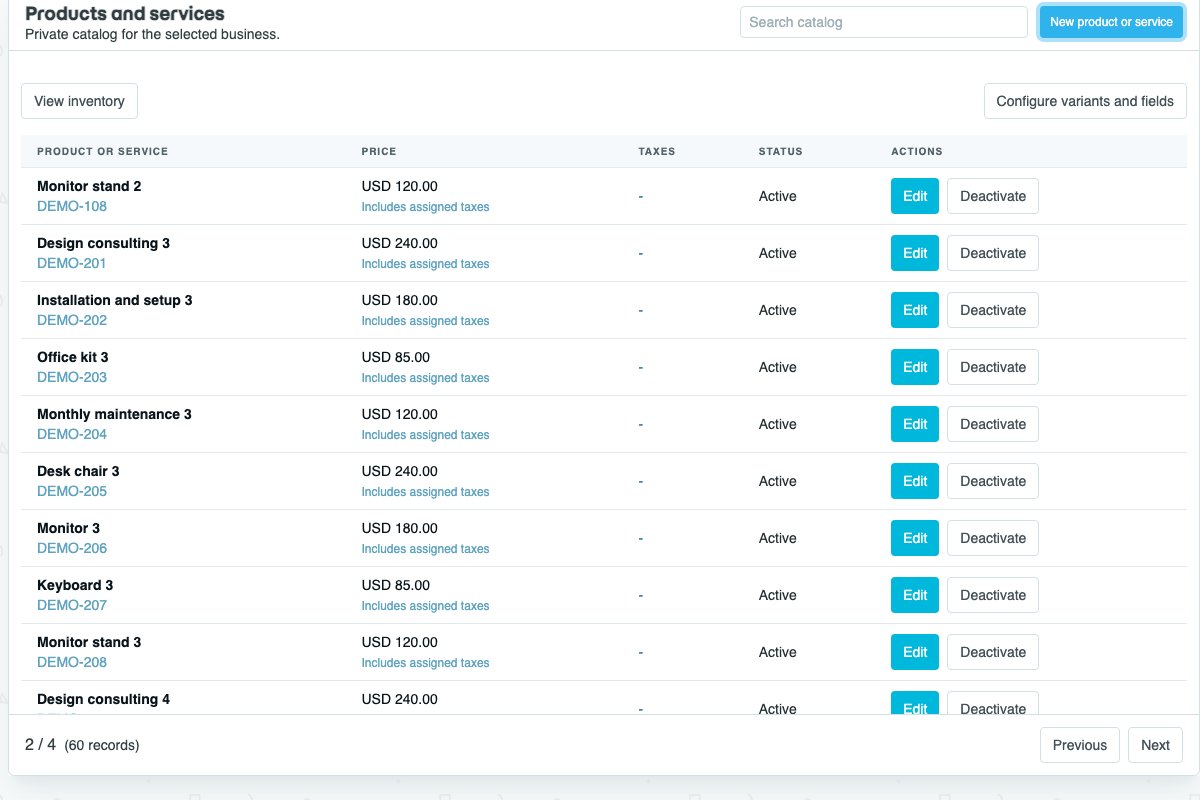
A catalog that saves repetitive work
Organize the products and services you sell and select them when preparing documents. Keep reusable information so you spend less time entering the same descriptions and prices.
How it works
Purchasing has a supplier-specific catalog separate from sales. Add items or services during a transaction and assign their expense category to keep purchases better organized.
07 · Review and decide
Turn transactions into useful information.
Review results, organize accounts and give each person the tools they need to do their work.
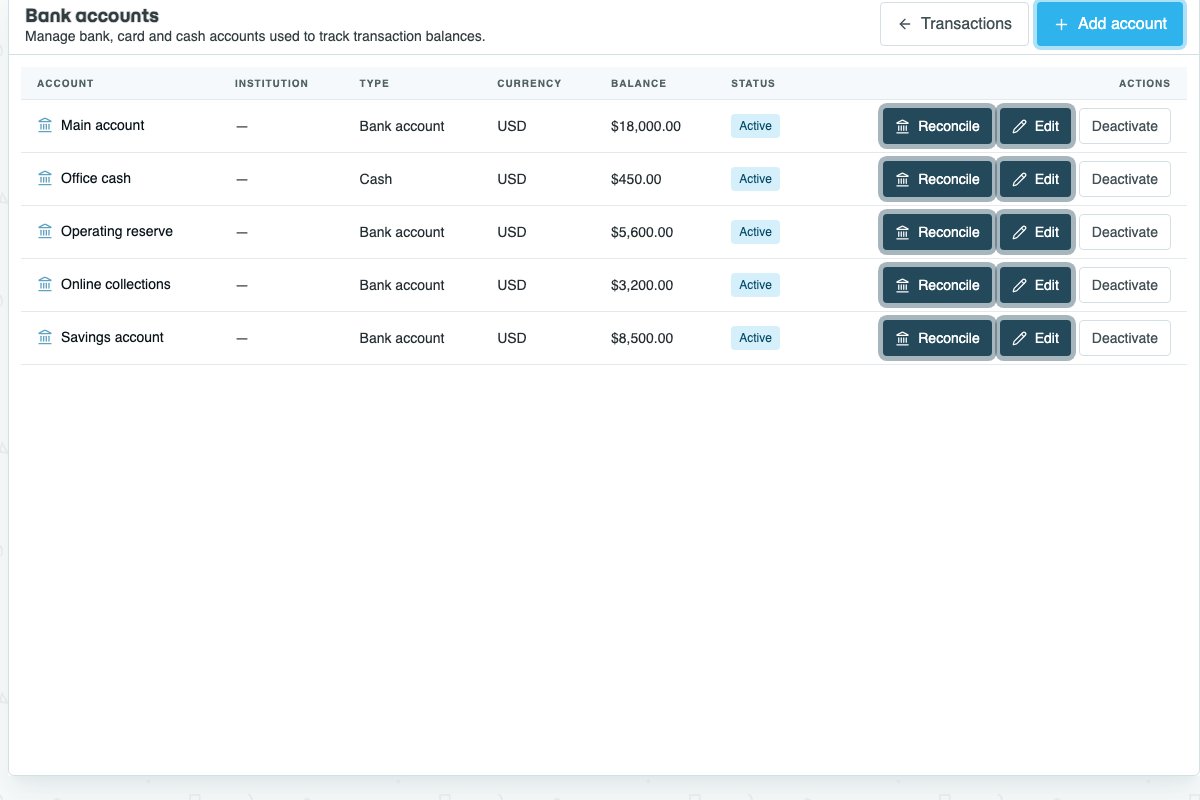
Collections, payments and accounts in context
Record income and expenses, review payments and manage bank accounts. Keep transfer and transaction references to understand how your business funds change.
How it works
Work with configured currencies and review account summaries. Reconciliation tools and supported integrations help review transactions; connecting a payment gateway to collect money is a separate setting.
08 · Grow at your pace
More capacity when your operation needs it.
Start with a plan that fits and check available capacity before taking your next step.
Every feature. The capacity you need.
Choose a Business plan for your monthly invoices and users, including the owner. Each business has its own subscription. Check usage and remaining capacity to anticipate when you need to upgrade.
How it works
Annual base-plan billing costs ten monthly payments for twelve months of service. Request an upgrade when you need more capacity. Review current prices and terms in Plans; later catalog changes do not change the terms of an existing subscription.